
Graphic design is not only about colors, fonts, and layouts.
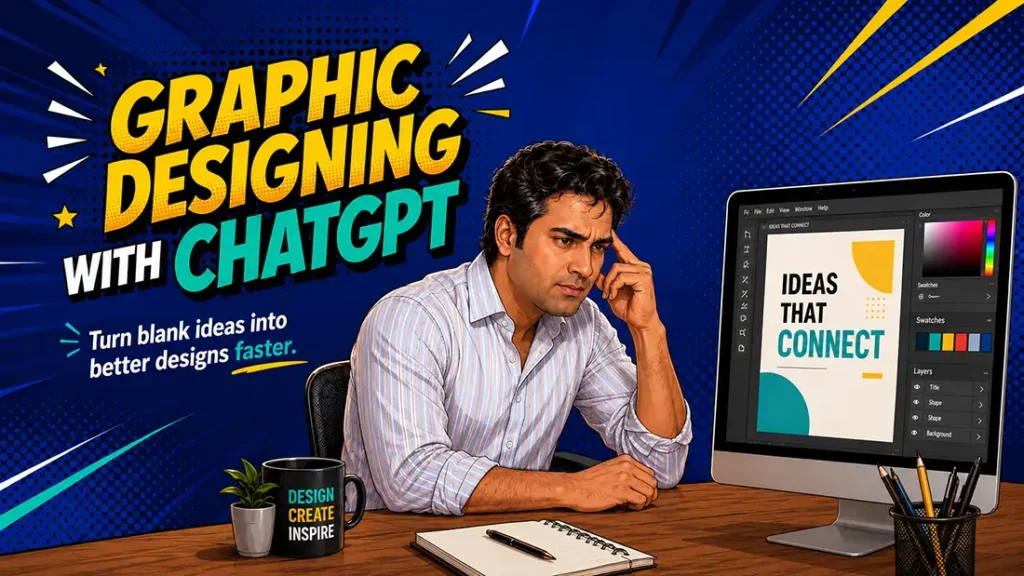
It starts much before that. It starts with a thought.
What should I design?
What should the headline say?
Which colors will match the message?
What layout will make people stop and look?
This is where many designers, marketers, business owners, and creators get stuck.
They open Photoshop, Illustrator, Canva, Figma, or any design tool. They stare at a blank canvas. They move a few shapes. They try a font. Then they delete it. Then they try another idea. Still nothing feels right.
The problem is not always designing skill. Most of the times, the problem is lack of clarity.
And this is exactly where ChatGPT can become a powerful creative partner.
- Not to replace your design sense.
- Not to replace your taste.
- Not to do everything for you.
But to help you think faster, structure better, and start with a stronger direction.
Why Graphic Designing with ChatGPT is a Smart Workflow
Most people think ChatGPT is only for writing.
That is a limited way to use it.
ChatGPT can help you build the thinking behind the design. It can help with concept ideas, headlines, content structure, color mood, typography direction, layout suggestions, visual metaphors, campaign angles, poster copy, carousel flow, ad hooks, and brand messaging.
In simple words, ChatGPT can help you answer the most important question before designing:
“What exactly should this design communicate?”
Once this is clear, designing becomes much easier.
A designer with clarity works faster. A designer without clarity keeps experimenting randomly.
What ChatGPT Can Help You With in Graphic Design
ChatGPT cannot replace your eye for spacing, balance, alignment, contrast, and visual taste. But it can help you create a strong starting point.
It can help you with:
- Design concept ideas
- Headline and subhead options
- Poster copy
- Campaign messaging
- Color palette direction
- Font pairing suggestions
- Layout structure
- Creative theme
- Visual style direction
- Audience-based messaging
- Ad variations
- Carousel content flow
- Design brief creation
- Client presentation notes
- CTA options
- Creative rationale
This means ChatGPT becomes your ideation partner. You still remain the designer.
Step 1: Start with the Design Goal
Before asking ChatGPT to help with design, you need to define the goal. A design without a goal becomes just a nice-looking image. Ask yourself:
What is this design supposed to do?
- Should it create awareness?
- Should it get clicks?
- Should it explain an idea?
- Should it generate leads?
- Should it promote a product?
- Should it announce an offer?
- Should it build trust?
- Should it make people save or share?
Once you know the goal, your prompt becomes stronger.
Instead of saying: “Give me a poster idea.”
Say:
“I want to create an Instagram poster for a digital marketing agency. The goal is to get small business owners to inquire about social media marketing services. The design should look modern, confident, and premium. Give me 5 creative poster concepts with headline, subhead, visual idea, color direction, and CTA.”
Now ChatGPT has enough context to give you useful ideas.
Step 2: Define the Audience
Good design speaks to the right people.
A poster for college students will not look or sound like a poster for HNI investors. A design for a fitness brand will not feel like a design for a luxury real estate project. A social media post for small business owners will not have the same tone as a corporate presentation slide.
So, always mention the audience.
For example:
“My audience is small business owners who are confused about digital marketing.”
Or:
“My audience is startup founders who want premium branding.”
Or:
“My audience is young creators who want to use AI for content creation.”
This helps ChatGPT suggest better messaging, better tone, and better visual direction.
Audience clarity makes design sharper.
Step 3: Ask for Concepts, Not Just Text
Many people use ChatGPT only to write captions or headlines. That is useful, but limited. For graphic design, ask ChatGPT to think in concepts.
A concept is the main idea behind the design. It gives your visual a reason.
For example, if you are designing a poster for “Graphic Designing with ChatGPT,” the concept could be:
A designer stuck at a blank screen, then ChatGPT turns confusion into clarity. That is a concept.
From there, you can build the visual story:
Panel 1: The designer is stuck.
Panel 2: He asks ChatGPT.
Panel 3: ChatGPT gives headline, color, font, and layout ideas.
Panel 4: The final design is ready.
That is exactly why the comic strip format works well. It shows transformation.
From confusion to clarity. That is strong communication.
Step 4: Generate Headline Options
A weak headline can kill a good design. People see the headline first. If it does not catch attention, they may not look at the rest of the design.
ChatGPT can help you create many headline options quickly.
For example, you can ask:
“Give me 20 punchy headline options for a social media post about using ChatGPT for graphic design. Make them short, bold, and scroll-stopping.”
You may get options like:
“Design Smarter with ChatGPT”
“From Blank Canvas to Big Idea”
“ChatGPT Is Your Creative Shortcut”
“Stop Staring at a Blank Screen”
“Your Design Idea Starts Here”
“Think Faster. Design Better.”
“Turn Prompts into Posters”
“Design Ideas in Minutes”
You do not have to use the first option.
Use ChatGPT to explore. Then you choose. That is the right workflow.
Step 5: Build the Design Structure
Once the headline is clear, ask ChatGPT to structure the design.
For a poster, ask:
“What should be the visual hierarchy?”
For a carousel, ask:
“How should I divide this into slides?”
For a flyer, ask:
“What sections should be included?”
For a website hero image, ask:
“What should be the layout structure?”
For a social media ad, ask:
“What should be the headline, offer, proof, and CTA?”
This is where ChatGPT becomes useful as a design planner.
Example prompt:
“Create a layout structure for a 4:5 Instagram post on the topic ‘Graphic Designing with ChatGPT’. Include headline placement, main visual idea, supporting text, CTA placement, and color direction.”
The answer may help you create the design much faster.
Step 6: Use ChatGPT for Color Direction
Color selection is not random. Every color creates a feeling.
Blue can feel trustworthy and tech-driven.
Purple can feel creative and premium.
Orange can feel energetic and action-focused.
Black can feel bold and luxury.
White can feel clean and minimal.
Green can feel growth, freshness, and progress.
ChatGPT can suggest color palettes based on the brand, mood, and audience.
For example:
“Suggest 5 color palette options for a modern comic-style design about ChatGPT and graphic design. The mood should feel creative, smart, bold, and digital.”
You can also ask for hex codes.
But remember, ChatGPT gives direction. You should still test the colors visually.
A color palette that sounds good in text may need adjustment inside the actual design.
Step 7: Ask for Font Pairing Suggestions
Typography decides the personality of your design. A bold comic headline needs a different font than a luxury real estate brochure. A tech startup banner needs a different type style than a fashion poster.
ChatGPT can suggest font pairings depending on the style.
For example:
“For a bold comic-style Instagram post, suggest font pairing options for headline, subhead, and body text. The design should feel energetic, modern, and readable.”
It may suggest bold display fonts for headlines and clean sans-serif fonts for body text.
Again, do not follow blindly. Use it as a starting point.
Your final choice should depend on readability, brand fit, and design balance.
Step 8: Create Layout Options Before Designing
Many designers jump directly into software. A better way is to create 3–4 rough layout directions first.
ChatGPT can help you think through layout ideas.
For example:
“Give me 5 layout options for a comic strip on ‘Graphic Designing with ChatGPT’. Each option should describe panel flow, character placement, text placement, and visual storytelling.”
You can get layout ideas like:
One vertical 4-panel comic strip
Split-screen before-after design
Designer on left, ChatGPT output on right
Step-by-step tutorial style
Big headline with character and laptop visual
Now you have multiple directions.
Pick the strongest one and start designing.
Step 9: Use ChatGPT to Write Design Rationale
This is very useful for professionals.
Many times, you create a design but struggle to explain the thinking to the client.
ChatGPT can help you write a short rationale.
For example:
“Write a short design rationale for a comic-style visual showing how ChatGPT helps designers move from blank canvas confusion to final poster clarity.”
Possible output:
“This design uses a comic-strip format to show the transformation from creative block to clear execution. Each panel represents one stage of the design thinking process: problem, prompt, direction, and final output. The bold comic typography and expressive character treatment make the topic more relatable, while the screen-based visuals show how ChatGPT supports ideation, layout, typography, and messaging.”
This can help in presentations, proposals, Behance case studies, and client approvals.
Step 10: Use ChatGPT for Variations
One design idea can become many content pieces.
For example, from one topic like “Graphic Designing with ChatGPT,” you can create:
An Instagram comic strip
A Facebook post
A blog hero image
A LinkedIn carousel
A YouTube thumbnail
A reel script
A short caption
A blog article
A downloadable prompt sheet
A newsletter section
ChatGPT can help you repurpose the same idea into multiple formats. This saves time and increases content output. The smart creator does not create from zero every time.
The smart creator builds content systems.
A Simple Workflow: From Prompt to Final Design
Here is a clean process you can follow. First, define the purpose of the design. Then describe the audience. Next, ask ChatGPT for creative concepts. After that, generate headline options.
Then ask for visual direction. Next, ask for color and typography suggestions. Then create rough layouts. After that, open your design tool and start creating.
Finally, use ChatGPT again to refine the caption, CTA, alt text, blog title, or client explanation.
This workflow is simple but powerful. It makes your design process faster and more strategic.
Ready-to-Use Prompt for Graphic Designing with ChatGPT
Use this prompt when you want design ideas:
“Act as a senior graphic designer, brand strategist, and advertising copywriter. I want to create a design for [platform/format] on the topic [topic]. My audience is [audience]. The goal of this design is [goal]. The brand style should feel [style/mood]. Give me 5 strong creative concepts. For each concept, include headline, subhead, visual idea, color direction, font style, layout structure, and CTA. Keep the ideas practical and easy to execute.”
Example:
“Act as a senior graphic designer, brand strategist, and advertising copywriter. I want to create a 4-panel Instagram comic strip on the topic ‘Graphic Designing with ChatGPT’. My audience is designers, marketers, creators, and small business owners. The goal is to show how ChatGPT helps with design ideation. The brand style should feel bold, modern, comic-style, and educational. Give me 5 strong creative concepts. For each concept, include headline, subhead, visual idea, color direction, font style, layout structure, and CTA.”
This prompt gives better results because it gives ChatGPT enough direction.
Another Prompt for Poster Design
“Create a complete poster concept for [topic]. Include a strong headline, subhead, 3 key points, CTA, visual metaphor, color palette, typography direction, layout idea, and design mood. The poster should be suitable for [platform] and target [audience]. Avoid generic ideas. Make it visually fresh and easy to understand.”
Prompt for Social Media Creative
“Create a social media creative brief for [topic]. The audience is [audience]. The goal is [goal]. Give me headline options, subhead options, visual direction, color palette, font suggestions, CTA, and caption. Keep the design simple, scroll-stopping, and easy to read on mobile.”
Prompt for Carousel Design
“Create a [number]-slide carousel on [topic]. Give me slide-by-slide content, headline for each slide, short body text, visual idea for each slide, color direction, and CTA for the last slide. Make it educational, engaging, and easy to understand.”
Prompt for Logo or Brand Direction
“Act as a brand identity expert. I am creating a brand for [business type]. The audience is [audience]. The brand personality is [personality]. Suggest logo concepts, color palette, typography style, visual language, tagline ideas, and brand mood direction.”
What ChatGPT Cannot Do for Graphic Designers
It is important to be honest. ChatGPT is not a replacement for design taste. It cannot perfectly judge spacing, balance, pixel-level alignment, visual rhythm, brand fit, printing issues, or final composition the way a good designer can.
It can suggest. You decide. It can generate ideas. You filter. It can draft. You refine. It can speed up thinking. You still create the final output. The designer’s eye is still important.
In fact, AI makes design taste more valuable, not less.
Because when everyone can generate ideas, the person with better judgment wins.
How Graphic Designers Can Use ChatGPT to Get Better Results
- Use ChatGPT before opening your design software.
- Use it to understand the brief.
- Use it to explore angles.
- Use it to create messaging.
- Use it to structure the layout.
- Use it to write captions.
- Use it to explain concepts to clients.
- Use it to create variations.
- Use it to repurpose your design into content.
But never use it blindly. Your final design should still carry your thinking.
The Result: Faster Ideas, Better Clarity, Stronger Designs
The biggest benefit of using ChatGPT in graphic design is not just speed. It is clarity.
When you have clarity, you design with confidence.
- You know what the headline should do.
- You know what the audience should feel.
- You know where the visual should lead the eye.
- You know what the CTA should ask.
- You know why the design exists.
That is what makes a design stronger.
Not more effects. Not more elements. Not more decoration.
Clear thinking creates clear design.
Final Thoughts
Graphic designing with ChatGPT is not about letting AI do your job.
It is about using AI to sharpen your creative process.
ChatGPT can help you move from blank canvas to clear concept. It can help you write better headlines, build stronger layouts, choose better content flow, and explain your design idea with more confidence.
But the final design still needs your eye.
- Your taste.
- Your judgment.
- Your experience.
- Your creative decision.
Use ChatGPT as your brainstorming partner.
Use it to think faster.
Use it to create smarter.
Use it to save time.
But always remember: tools do not create great design. Clear thinking does.
And ChatGPT can help you reach that clarity much faster.
FAQs: Graphic Designing with ChatGPT
1. Can ChatGPT help with graphic design?
Yes. ChatGPT can help with graphic design ideation, headlines, design briefs, layout ideas, color direction, typography suggestions, poster copy, carousel content, and creative concepts. It cannot replace a designer’s visual judgment, but it can improve the planning process.
2. How do I use ChatGPT for graphic design?
Start by giving ChatGPT your design goal, audience, platform, brand style, and required format. Then ask for concepts, headline options, layout structure, color palette, font direction, and CTA ideas.
3. Can ChatGPT create design layouts?
ChatGPT can describe layout ideas and structure. It can suggest where to place the headline, image, CTA, and supporting text. You will still need to create the actual layout in a design tool like Canva, Photoshop, Illustrator, Figma, or any other software.
4. Is ChatGPT useful for social media design?
Yes. ChatGPT is very useful for social media design. It can help you create post concepts, carousel content, hooks, captions, CTA lines, and repurposing ideas.
5. Can ChatGPT suggest color palettes?
Yes. ChatGPT can suggest color palettes based on the brand mood, target audience, and design style. You can also ask for hex codes. But always test the colors visually before finalizing.
6. Can designers use ChatGPT professionally?
Absolutely. Designers can use ChatGPT to understand client briefs, create concepts, write rationale, generate content options, prepare presentation notes, and speed up ideation.
7. Will AI replace graphic designers?
AI may replace repetitive design tasks, but it will not replace strong creative judgment, brand thinking, storytelling, visual taste, and strategy. Designers who use AI smartly will have an advantage.
8. What is the best prompt for graphic design with ChatGPT?
The best prompt includes your goal, audience, platform, brand style, format, and output requirement. For example: “Act as a senior graphic designer and advertising copywriter. Create 5 poster concepts for [topic], including headline, subhead, visual idea, color direction, font style, layout, and CTA.”